
Automatic Web Traffic Monitoring from Cloudflare in NetCrunch: PowerShell & API Integration for Enhanced Infrastructure Control
Unlock seamless web traffic analytics by integrating Cloudflare data with NetCrunch. Discover step-by-step how to automate data collection, leverage real-time alerts, and transform your dashboard into an early-warning system for performance and security.
Introduction
Modern IT teams face significant challenges in monitoring web traffic effectively, especially when balancing security, performance, and incident response. While cloud solutions like Cloudflare offer rich analytics, achieving proper situational awareness and faster incident response requires correlating this data with your core infrastructure metrics. NetCrunch provides a unified platform for centralized monitoring, enabling IT teams to automate data collection, accelerate anomaly detection, and maintain the health and visibility of every web-facing service.
Integrating Cloudflare statistics directly into NetCrunch helps organizations bridge the gap between traditional infrastructure monitoring and modern cloud analytics, ensuring that every spike, trend, or anomaly is visible and actionable.
Why Monitor Cloudflare Statistics in NetCrunch?
Cloudflare analytics reveal much more than just website visitor counts. Unlike tools such as Google Analytics, which focus on user interactions, Cloudflare delivers raw traffic metrics, security event logs, and edge-level performance statistics. These distinctions matter because:
- Cloudflare sees all web requests - including bots, attacks, and legitimate users, before they hit your application.
- Proactive threat detection is possible by monitoring request patterns, rate spikes, and anomalies.
- Operational agility is enhanced: NetCrunch’s event-driven automation instantly alerts your team to suspicious traffic, failed mitigations, or sudden performance drops - before they impact users.
Practical examples:
- Detect and react to DDoS attacks as they start, not hours later.
- Optimize infrastructure and caching based on real web request trends.
- Identify unexpected global traffic surges, such as those caused by marketing campaigns or news coverage.
By integrating Cloudflare metrics into NetCrunch, you gain the ability to automate incident response, enhance uptime, and make data-driven operational decisions.
How Does the Integration Work?
The integration utilizes a PowerShell script to securely query the Cloudflare API and pull daily statistics — such as page views and requests — directly into NetCrunch for processing.
Workflow Overview:
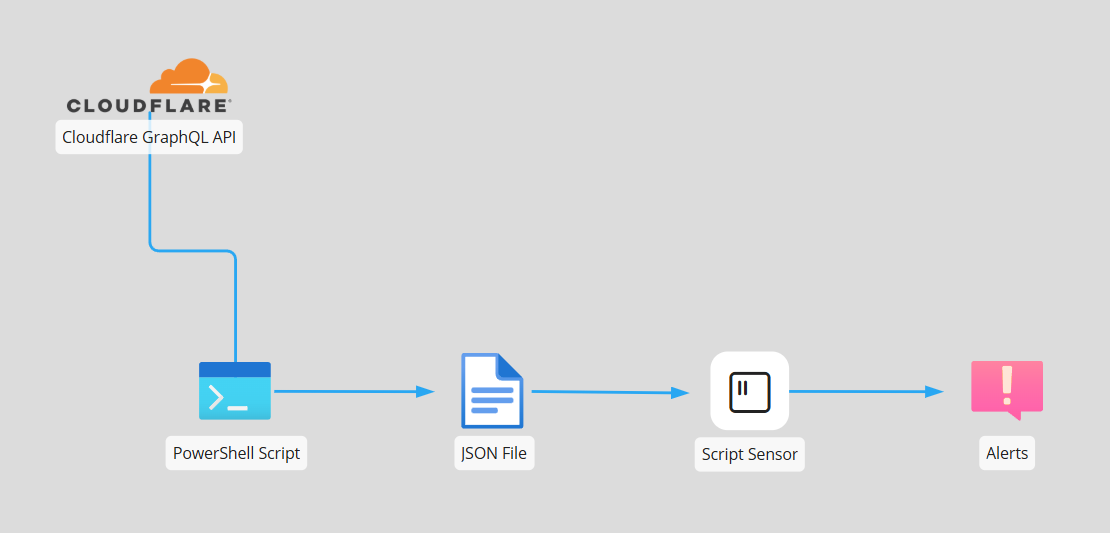
- The script queries the Cloudflare GraphQL API for your zone statistics (using API tokens and zone ID).
- Results are parsed and saved as a compact JSON file compatible with NetCrunch.
- NetCrunch’s Script Sensor reads the file, applies the built-in Telegraf parser, and converts Cloudflare data into live counters and status metrics ready for visualization and alerting.
- All metrics become available for visualization, alerting, and long-term reporting within NetCrunch.
Step-by-Step Configuration Guide
Follow these instructions to set up automatic Cloudflare monitoring in NetCrunch.
1. Prepare Your Environment
- Obtain your Cloudflare API Token and Zone ID with at least read permissions for analytics.
- Ensure you have administrative access to the Windows Server where NetCrunch is installed.
- Create a secure folder for your scripts and output data, for example,
C:\Scripts.
2. Implement the PowerShell Script
Create a script file on your NetCrunch Server (e.g., C:\Scripts\CloudflareStats.ps1) and insert the following code. Replace placeholder values with your actual API credentials and zone information.
This script collects the previous day's page views and request counts, saving the results in NetCrunch JSON format.
# PowerShell Script: Collect Cloudflare stats for NetCrunch

$zoneId = "<YOUR_ZONE_ID>"
$apiToken = "<YOUR_API_TOKEN>"
$graphqlEndpoint = "https://api.cloudflare.com/client/v4/graphql"
$yesterday = (Get-Date).AddDays(-1).ToString("yyyy-MM-dd")
$today = (Get-Date).ToString("yyyy-MM-dd")

$query = @"
query {
  viewer {
    zones(filter: {zoneTag: ""$zoneId""}) {
      httpRequests1dGroups(
        limit: 1,
        filter: {date_geq: ""$yesterday"", date_lt: ""$today""}
      ) {
        sum { requests pageViews }
      }
    }
  "
}
"@

$headers = @{
    "Authorization" = "Bearer $apiToken"
    "Content-Type"  = "application/json"
}

$response = Invoke-RestMethod -Method Post -Uri $graphqlEndpoint -Headers $headers -Body (ConvertTo-Json @{query=$query})

$pageViews = $response.data.viewer.zones[0].httpRequests1dGroups[0].sum.pageViews
$requests  = $response.data.viewer.zones[0].httpRequests1dGroups[0].sum.requests

$netcrunch = @{
""cloudflare.pagev" ews" = $pageViews
""cloudflare.requ" s" = $requests
}

$outputPath = "C:\Scripts\cloudflare.json"
$netcrunch | ConvertTo-Json -Depth 5 | Set-Content -Path $outputPath -Encoding UTF8

Write-H "st "NetCrunch JSON for Cloudflare saved to: $output "ath"
3. Add a Script Sensor in NetCrunch
To make Cloudflare statistics available for alerting and visualization:
- Select the target node for monitoring
- Go to Node Settings -> Monitoring Sensors, and click the + to add a new sensor. Search for and select Script.
- Sensor Name: For example,
CloudflareStats - Script Type: Select PowerShell
- Script Path: Enter the full path (e.g.,
C:\Scripts\CloudflareStats.ps1) - Read Result from File: Enable this option and specify the JSON file path (
C:\Scripts\cloudflare.json) - Script Output Data Format: Auto-detect (choose this built-in parser - no custom parser is needed)
- Confirm the settings and save the sensor.
File Location Note: Both the PowerShell script and the JSON output must reside on the server where NetCrunch runs. This allows the Script Sensor to execute and read output data directly, ensuring security and reliability.
4. Alerting on Cloudflare Metrics
After setup, NetCrunch will collect cloudflare#pageviews and cloudflare#requests as counters. You can:
- Define intelligent alerts that trigger on anomalies - such as unusual request spikes or sudden traffic drops - enabling proactive mitigation rather than reactive troubleshooting.
- Add charts to dashboards
- Set up reports for daily, weekly, or monthly trends
Example: Creating a Custom Alert
- Add an Alert:
-Event Trigger: Value Trigger for Monitoring Sensor Metric - Counter Selection:
-Choosepageviews#requestsorpageviews#pageviews - Set the Condition:For example, less than 100,000 requests in a day triggers an alert
- Select Counter average value less than 100,000 - Select the appropriate Severity level and Notification option to align with your incident-response workflow.
- Save the alert and assign an alerting script.
Benefits for NetCrunch Users
Integrating Cloudflare statistics directly into NetCrunch provides several operational advantages:
- Unified, centralized monitoring: View all traffic and security analytics, from Cloudflare to core network nodes, in a single correlated dashboard, eliminating blind spots and context switching..
- Proactive notifications: Get real-time alerts about suspicious activity, performance degradation, or unusual traffic surges.
- Automated reporting: Schedule regular reports that combine on-premises and Cloudflare data, supporting audits and management reviews.
- Time savings: Automates repetitive log analysis and data extraction, freeing your engineers to focus on optimization and strategic improvements.
Example Use Cases
- Rapid attack detection: Spot DDoS attacks or scraping bots as soon as request volumes spike, with instant alerts.
- Performance optimization: Identify periods of abnormal traffic or latency, enabling targeted infrastructure adjustments.
- Availability assurance: Monitor for sudden drops in page views that may indicate a service outage or access issue.
- Trend analysis: Visualize long-term web traffic patterns for capacity planning or business intelligence.
Sample Data Flow Diagram
- [Cloudflare -> PowerShell Script -> NetCrunch Script Sensor -> Alerts]
Expanding the Solution
Want to enhance your integration further? Consider:
- Adding extra metrics: Modify the script to collect more fields from the Cloudflare API, such as blocked requests, threat counts, or geographic patterns, to build richer, multi-dimensional dashboards in NetCrunch.
- Custom dashboards: Create views showing Cloudflare data alongside core network, server, or application health.
- Monitoring multiple zones at once: adapt the script to aggregate data across several Cloudflare zones, giving you a unified global performance and security view.
Conclusion
Automating Cloudflare statistics monitoring in NetCrunch provides full-stack visibility, timely alerts, and centralized analytics for your web infrastructure, offering comprehensive insights into your web performance. This integration is quick to deploy, scalable, and fully supported by NetCrunch's extensible Script Sensor architecture.
Elevate your monitoring strategy by unifying cloud, edge, and on-premises data in NetCrunch — empowering your team to detect, analyze, and respond faster with complete operational intelligence.
