
Using multiselection and search to speed up various tasks in NetCrunch
Changing node properties, monitoring settings or maybe tuning your monitoring? Learn how NetCrunch can simplify various administration tasks.
Multiselection has been a key feature in NetCrunch since its very beginning - but what is obvious to its creators is sometimes a nice surprise to the users. Based on recent tech support conversations, read the below examples of how NetCrunch helps you manage a group of nodes' settings or properties in the NetCrunch Administration console.
Changing leading service for a group of nodes
The default leading service for Windows devices is CIFS/SMB. However, you can change it to PING for all Window nodes at once.
- In the Overview window, switch to the Windows tab
- By default, the tab displays all Windows nodes. Use the
CTRL+Ashortcut to select all nodes in the view. - Right-click over the selected list of nodes and go to the Node Settings.
- Click the PING tile located under the Network Services section
- In the popup window, click on the grey button leading - it will turn yellow, thus confirming that it is now the selected leading service for this group of nodes.
- Click the Save button to save the selection.
Changing authentication profile for the selected Linux nodes
A correct authentication profile is essential for collecting monitoring data from any device. See how you can easily change the profile used by a group of Linux devices to another one.
- In the Overview window, switch to the Linux tab
- By default, the tab displays all Linux nodes. Hold the
CTRLkey and click the nodes you want to select in the view. - Right-click over the selected list of nodes and go to Node Settings.
- Click the
gearwheelicon located next to the Linux section title. - In the Authentication Profile field, you can select what profile should be used for these nodes. You can also edit the profile there (for example to correct the password).
- Click the Save button to confirm your changes.
Modifying the list of monitored interfaces on the selected group of Cisco switches
Here let's explore the example where we'd like to monitor selected interfaces on the Cisco lab switches.
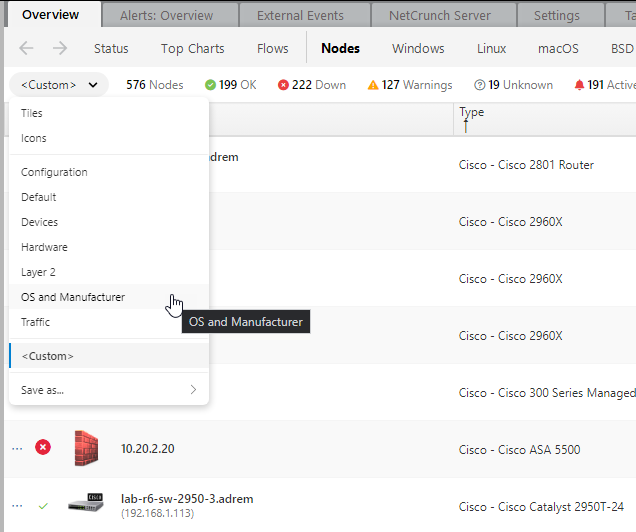
- In the Overview window, switch to the Nodes tab
- Select OS and Manufacturer grid view
- Click the Type column to sort by the manufacturer
- Use the search field located in the top right section of the tab - this field is used to search the particular view content only. Type
lab-to identify all Cisco lab devices. - The view now displays all Cisco lab devices. Holding the
CTRLkey select the switches you are interested in, disregarding routers and access points right now. - Right-click over the selected list of nodes and go to the Node Settings.
- Click the Interfaces tile located in the SNMP section and make your selection in the Monitored interfaces dropdown.
Defining graph widget for the node and multiplicating it for 5 other nodes of this type.
Working with widgets in the graphical views has been simplified. From the plethora of available widgets and shapes, see how you can quickly create multiple live graphs for selected metrics and nodes.
- Right-click over the Custom Views title in the Atlas tree tab,
- Select NewViewGraphical View and click the Edit button in the top section of the new view.
- Select desired
Graphical View settingsand clickContinue. - Click the + button in the left section of the view, and scroll down to the Graph widget. Drag&Drop it to the view.
- In the right section of the view in the Data Source, click the + Add Series button and select the node and the metric that should be displayed on the graph.
- Hold the
Altkey and drag and drop the graph widget to get as many copies as you wish. - Change the data source for each widget duplicate, selecting desired node and metric.
Changing alerting script for a group of nodes
Alerting script describes how NetCrunch should react to the monitored event, describing alert escalation as well as actions executed on alert start and on alert close/alert resolution.
- Select a group of nodes and navigate to the Node Settings window in the similar way as described in previous examples
- Click the 3 dot button from the top right section of the Monitoring tab
- Select All alerts and reports... option
- Hold the
CTRLkey and select desired alert definitions that require a different alerting script. - Right-click on the selection and scroll down to the Assign predefined script.
- Select the alerting script that you would like to assign to them.
- Click the OK button in the Node Monitoring Settings window to confirm your choice.
Changing monitoring time or monitoring time restrictions
Monitoring time restrictions can reduce alert levels for the nodes that we want to track only during specific days and times, for example only when they are actually used.
- Select a group of nodes and navigate to the Node Settings window in the similar way as described in previous examples
- In the top right section you can click the Monitoring time field to modify it.
- Right next to it in the field with a calendar you can click and select days and hour ranges when the monitoring should be performed for the selected group of nodes.
Do you have any other routine tasks that you would like to automate? Please let our friendly tech support team know about it and they'd be happy to assist.
