
Monitoring Suspicious CPU Usage
Monitoring CPU utilization is a critical component of effective IT infrastructure management, especially from the perspective of security and compliance. Learn how to set it up.
While routine CPU usage spikes, such as those caused by scheduled backups or batch processing during off-hours, are normal, suspicious spikes in CPU utilization demand immediate attention. NetCrunchallows for precise tracking of performance parameters, including CPU usage, which translates into several security and compliance benefits.
Follow the step-by-step instructions for enabling the conditional alert settings in NetCrunch.
1. Early Detection of Potential Threats
Unexpected and suspicious spikes in CPU usage can indicate various types of threats, such as:
- Malware Attacks – Viruses, trojans, or ransomware often cause sudden increases in resource utilization.
- DDoS Attacks – Excessive server load from mass requests can generate significant CPU spikes.
- Unauthorized Processes – Users may run unknown or unauthorized applications, leading to unforeseen load increases.
By differentiating between normal and suspicious activity, NetCrunch helps administrators focus on unusual events that could signal security risks. Monitoring thresholds during specific timeframes, such as nighttime hours and weekends, ensures that abnormal activity doesn’t go unnoticed when infrastructure should be idle. This helps quickly detect potential threats and take appropriate action.
2. Minimizing Compliance Risks
Monitoring and analyzing CPU utilization to detect suspicious situations can help organizations meet regulatory requirements, such as:
- GDPR – Detecting unauthorized access to data or unexpected data processing activity.
- ISO 27001 – Effective IT infrastructure monitoring is a key requirement of this standard.
- SOX (Sarbanes-Oxley Act) – Ensuring the integrity and security of financial systems.
By focusing on suspicious CPU spikes, you can demonstrate proactive risk management and strengthen compliance. NetCrunch’s reporting capabilities provide evidence for audits and support adherence to security policies.
3. Reducing False Alarms
Configuring NetCrunch monitoring to alert about specific situations outside standard business hours reduces the number of irrelevant notifications. CPU usage spikes during work hours are often caused by planned employee activities, such as running business processes or performing computational tasks.
This ensures that monitoring efforts are focused on real threats, not routine processes, and allows administrators to prioritize responses effectively.
4. Optimized Incident Response
NetCrunch allows automation of responses to events, such as: - Generating alerts when defined CPU usage thresholds are exceeded. - Running diagnostic or remedial scripts. - Notifying appropriate teams upon anomaly detection.
When suspicious CPU activity is identified, swift and informed responses minimize the risk of escalation and system compromise.
5. Proactive IT Infrastructure Management
Analyzing historical monitoring data helps identify patterns and trends in CPU usage. Based on this information, organizations can:
- Implement preventive measures, such as resource optimization or application configuration improvements.
- Plan infrastructure upgrades in response to growing demands.
A proactive approach reduces the risk of failures and helps prevent security breaches that result from overlooked suspicious activity.
Step-by-Step Instructions for Setting Up Suspicious CPU Utilization Alerts in a Specific Time Range
- Click the
Settingstab in the top menu. - Search for
Monitoring Packs. - Select
Windowsand search forCPU. Follow a similar path for Linux/MacOS. -
Click on
Windows/CPU Monitoring Packto edit.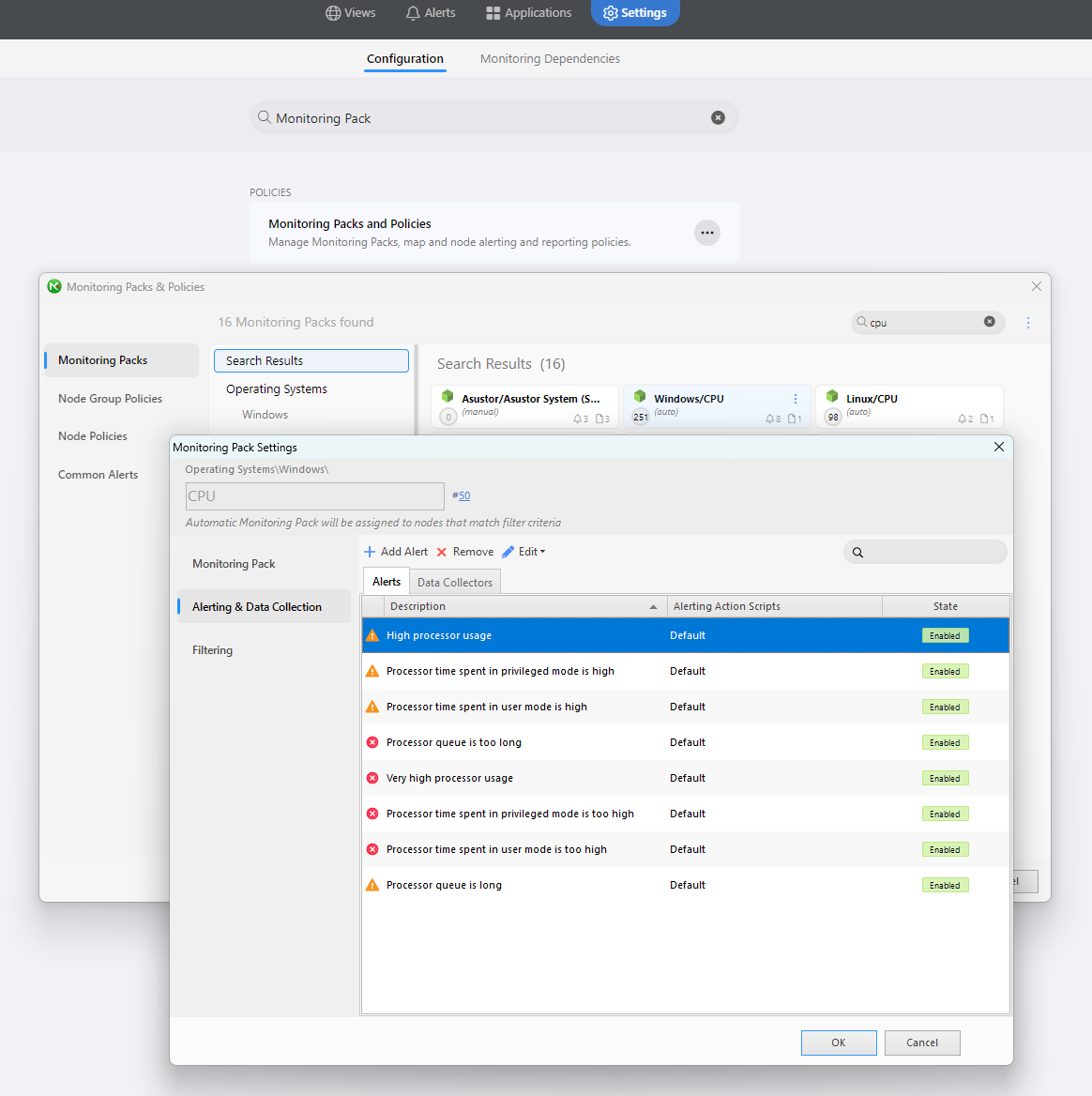
-
Select the alert you are interested in, click
Edit, and chooseModify Event Rule. -
In the
Alerting Rulewindow, go toTrigger Alerting Actions Onand selectOnly if time betweenfrom the dropdown menu: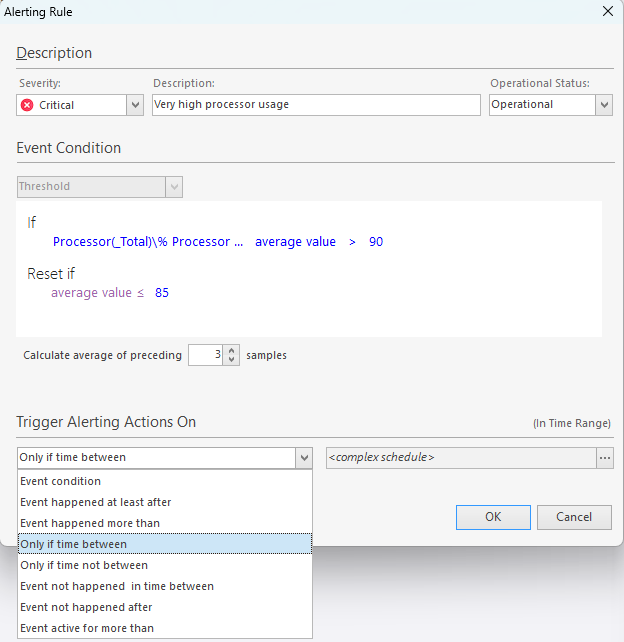
-
Click
Advancedand go toSelect Time Range. -
Select the time intervals for each day of the week when you want to receive alerts. For example,
12:00 AM to 6:00 AMMonday through Friday, and all day on weekends.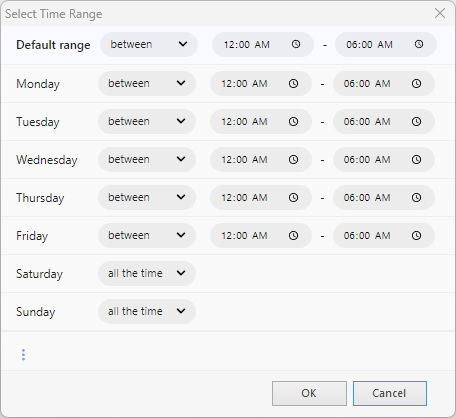
-
That's it! From now on, you will receive alerts for the selected event only during the specified time intervals.
Conclusion
Monitoring suspicious CPU usage spikes with NetCrunch is a crucial element of security and compliance management strategies. While routine activity such as backups or maintenance is normal, unusual spikes can signal serious threats that demand immediate attention. By enabling NetCrunch’s advanced monitoring capabilities, organizations can identify potential risks, reduce false alarms, and meet regulatory requirements. This approach ensures efficient IT infrastructure management and robust protection against threats.
